Course Linking
Here's how to add a link to your OB3 course to your Moodle course page
Obtain your OB3 course LTI link
- Login to the OB3 Program Administration (PMA) account for your Department
-
we recommend that you log into the PMA account using a Chrome incognito window or Edge InPrivate browser window. Login to Moodle in a normal browser window. This will keep your PMA OB3 session separate from your teacher OB3 session.
-
... if you don't have access to the PMA account, contact your Departmental co-ordinator for OB3 and ask them to complete this step for you
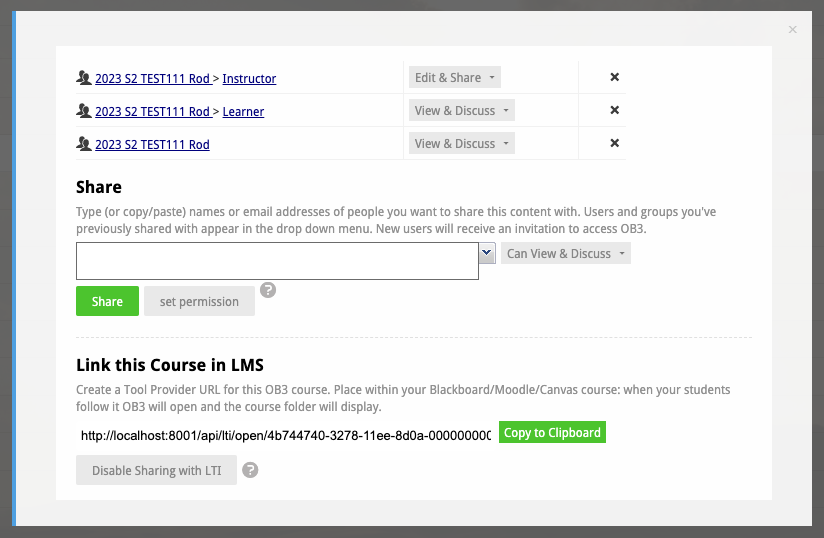
- Locate your course and click the checkbox next to it then click the Sharing and Permission button. The Sharing and permissions dialog will appear. This example shows how sharing will appear when a course is shared with the LMS (Link this course in LMS). There are three groups created: the instructor group (all teachers who have accessed this course from the LMS), Learner group and the parent group.
- to adjust privileges for teachers or learners access the dropdown menu.
- TIP: If you are having trouble finding your OB3 course LTI link, if you don't have access to the PMA account, or if you are unsure about any aspect of this process please don't just wing it - instead reach out to your Departmental OB3 Co-ordinator or contact OB3 support via the blue intercom bubble in OB3 or by emailiing to help@ob3.io.
Copy the LTI Link for this course
- under the Link this Course in the LMS click the green Copy to Clipboard button
- ... if your course has not already been shared with the LMS a button will appear to create the LTI link
- FINALLY don't click the "x" icons next to the groups in the Sharing and Permissions panel: those will remove the groups from your course. Instead click the x at the top right of the dialog or press escape key.
- If you do delete a group from the share, and are unsure how to revert/fix this, contact OB3 support for assistance. Students may not be able to log into your course if you delete the groups from the course....
Adding your OB3 course link to your Moodle page
In Moodle locate your course and the page where you want to add your OB3 link. Turn editing on. Add a new resource where you want the OB3 link to appear.
- select "External Tool Link" resource
- give your resource a title e.g. "Click here to access DEMO111 in OB3"
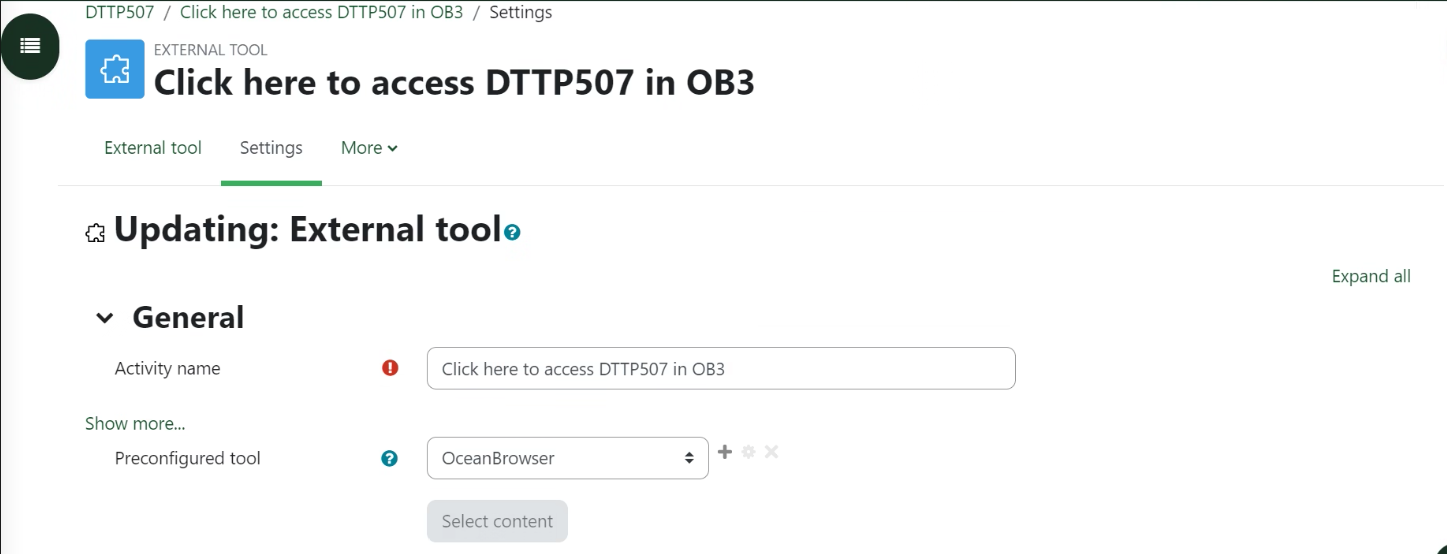
- click the "Show more..." link under activity name
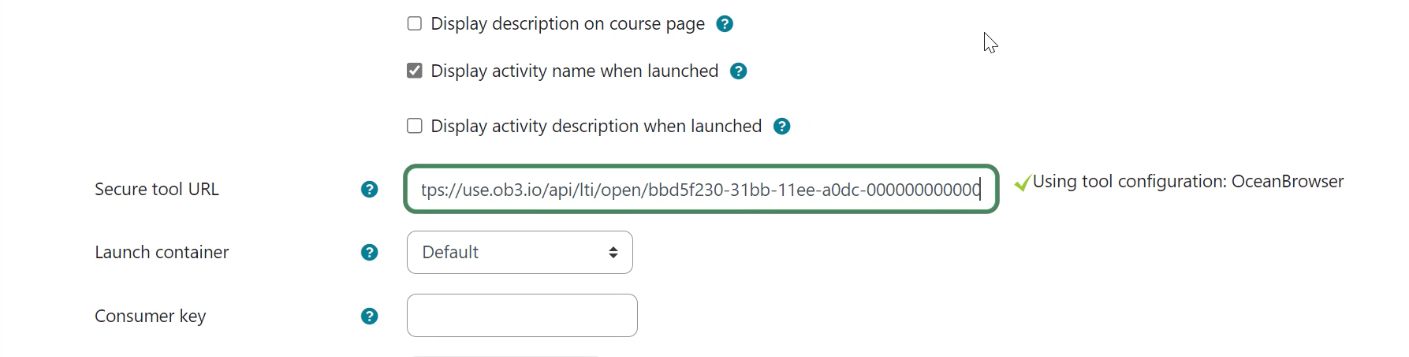
- Scroll down to Secure Tool Link.
- Paste the link on your clipboard into the Secure Tool Link field. Moodle will say "Using tool configuration Oceanbrowser"
- if the confirmation does not appear check the link you have pasted contains /api/lit/open. If it does not, go back to Obtain your OB3 course link above and repeat the steps. You've copied the wrong url.
- scroll down and click "Save and Return to Course"
- note that it is not possible to edit LTI links after they are created, if the link fails for any reason (for example you pasted the wrong link) it is best just to delete the Moodle External Tool resource from your course and start again.
Confirm your OB3 link works correctly
- In Moodle, click the OB3 link you have just created and confirm that OB3 opens.
- this will log you into OB3 using your individual (personal) OB3 account. Note that if you have the PMA account open in the same browser it will log you out. We recommend you open the PMA account using an Incognito (or private) browsing window.
- IMPORTANT: check the cookie trail area at the top of OB3 and confirm that the link you have followed has logged you into the RIGHT course. Sometimes when teachers are setting up multiple courses they may accidentally add the wrong LTI link to the wrong course. Make sure you are linking to the correct course. Here's an example:
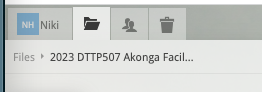
- Note: we recommend you start course names with YEAR SEMESTER COURSE CODE, e,g 2023 S2 DTTP507 so that when viewing the cookie trail area (as illustrated) it is easy to confirm the course you are viewing.
- If the link does not work or you are not successfully logged into your course repeat the steps above
- make sure the new link is published/viewable to students
Trouble shooting
Tip: if you have a problem start by deleting the LTI link from your course and repeating the steps above. Note you can't easily edit LTI External Tool Links in Moodle once created, so it's best just to start again.
Common causes of problems (in order of frequency we've seen)
- adding hyperlink (from the browser address bar) rather than an LTI link (copied from the Sharing and Permissions dialog). How to check: LTI links start link this https://use.ob3.io/api/lti/open.... If they don't contains /api/lti it is not an LTI link!
- Note: Moodle will happily confirm that a normal hyperlink are OK (they are not) as it only checks the domain at present (use.ob3.io).... Be sure you've pasted an LTI link.
- pasting the LTI link into the Tool Link field instead of the Secure Tool Link field. OB3 is a secure (https) tool, so you must use the Secure Tool Link field.
- LTI Sharing has been disabled in sharing. Check the Sharing and Permissions dialog - did you click the Disable LTI sharing for this course?